
Firestick Storage Extender Guide: How to Expand Fire TV Storage Without USB
Seeing the 'Critically Low Storage' warning on your Fire TV Stick? Avoid messy OTG splitters and failing flash drives with this zero-hardware cloud streaming guide.
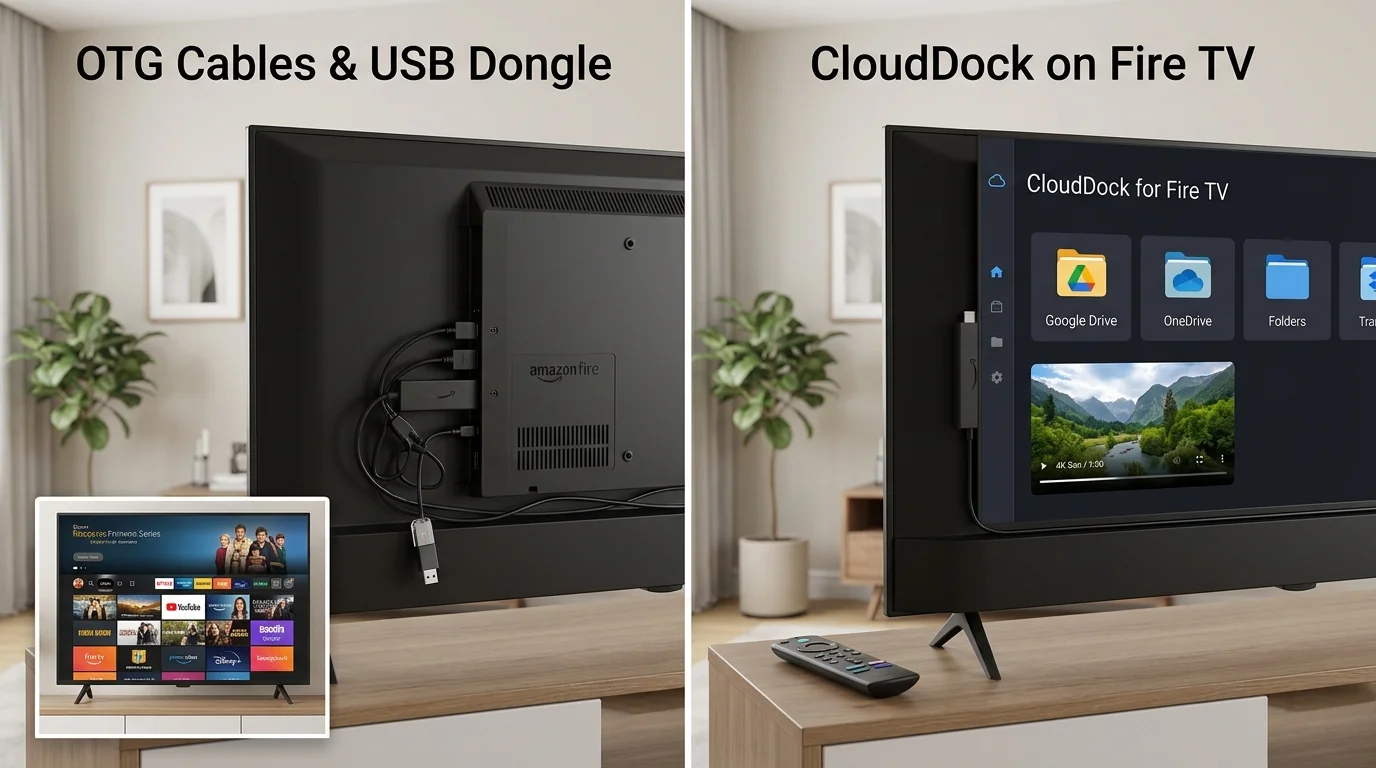
1. The Firestick 5GB Bottleneck: Why Storage Fills Up Fast
The Amazon Fire TV Stick is one of the world's most popular streaming devices. But almost every Firestick owner encounters the dreaded full-screen alert:
'Critically Low Storage: Your Fire TV has less than 500MB of storage remaining. To avoid unexpected restarts, free up storage now.'
All standard Fire TV Sticks (Fire TV Stick Lite, Fire TV Stick 4K, and 4K Max) advertise 8GB of internal storage. However, Fire OS and system services consume nearly 3GB out of the box, leaving users with barely 5GB for all their apps and media.
Once you install five or six streaming services, app caches quickly devour the remaining space. Fire OS becomes noticeably sluggish, video streams stutter, and apps refuse to launch.
“When Firestick internal storage drops below 250MB, Amazon Fire OS will randomly reboot in the middle of heavy video playback to force-clear system logs.”
2. The OTG Cable & USB Flash Drive Mess: Why Hardware Fails
To fix this, tech forums often recommend buying a 'Micro-USB OTG 'Y' Splitter Cable' and plugging a USB 3.0 flash drive into the back of your Fire TV Stick.
While this sounds clever in theory, in practice it creates major headaches:
- Cable Clutter Behind TV: A rat's nest of USB splitters, power cables, and flash drives hangs precariously from the TV HDMI port.
- Insufficient Power Draw: Firestick power bricks only supply 1 Amp to 1.5 Amps. Adding a power-hungry USB drive causes brownouts and constant Firestick boot loops.
- App Incompatibility: Most Fire TV apps refuse to install on external USB storage, meaning your system drive stays full anyway.
3. The Modern Solution: Firestick Cloud Storage Extender
Instead of dangling fragile USB splitters behind your television, use Cloud Dock as a zero-hardware cloud storage extender.
Cloud Dock streams your video files, home recordings, and Google Drive photo galleries directly to your Fire TV Stick's hardware decoder over Wi-Fi. Because media streams transiently through RAM, zero disk space is used on your Firestick.
You gain access to 15GB to 2,000GB of personal cloud storage without spending a single dollar on OTG cables or USB thumb drives.
“No cables, no dongles, no formatting. Turn your existing Google Drive into an infinite wireless media extender for Fire TV.”
4. OTG Adapter Cable + USB Drive vs. Cloud Dock Streaming
Comparing physical OTG hardware expansion to Cloud Dock's zero-hardware cloud extender:
Micro-USB OTG Cable + Flash Drive
Requires buying $15–$25 extra cables & USB drive; messy dangling cords behind TV.
Cloud Dock TV Cloud Extender
$0 extra hardware; 100% clean and invisible setup over home Wi-Fi.
Power Stability
USB drive draws power from Firestick adapter, often causing brownouts and random restarts.
100% Stable Operation
No extra power draw; operates cleanly within standard Firestick power envelopes.
Media Transfer Step
Must unplug drive, insert into computer, copy files, and reconnect behind TV.
Instant 1-Tap Playback
Files in Google Drive play immediately on TV with zero manual file transfer.
5. How to Setup Cloud Dock on Amazon Fire TV Stick in 3 Minutes
Expanding your Fire TV Stick media storage takes less than 3 minutes:
- Step 1: On your Fire TV Stick, search for 'Cloud Dock' in the Amazon Appstore or Google Play, or sideload the universal APK.
- Step 2: Launch Cloud Dock on your TV screen to generate your 6-digit handshake code and QR code.
- Step 3: Point your smartphone camera at the TV and sign into Google Drive with 1 tap.
- Step 4: Browse your cloud video folders and photo albums on your phone and stream instantly in 1080p!
6. Frequently Asked Questions
Common questions about expanding Amazon Fire TV Stick storage:
Frequently Asked Questions
Related Articles & Technical Guides
Deep dives into Android TV media streaming pipelines, storage extenders, and living room memory management.
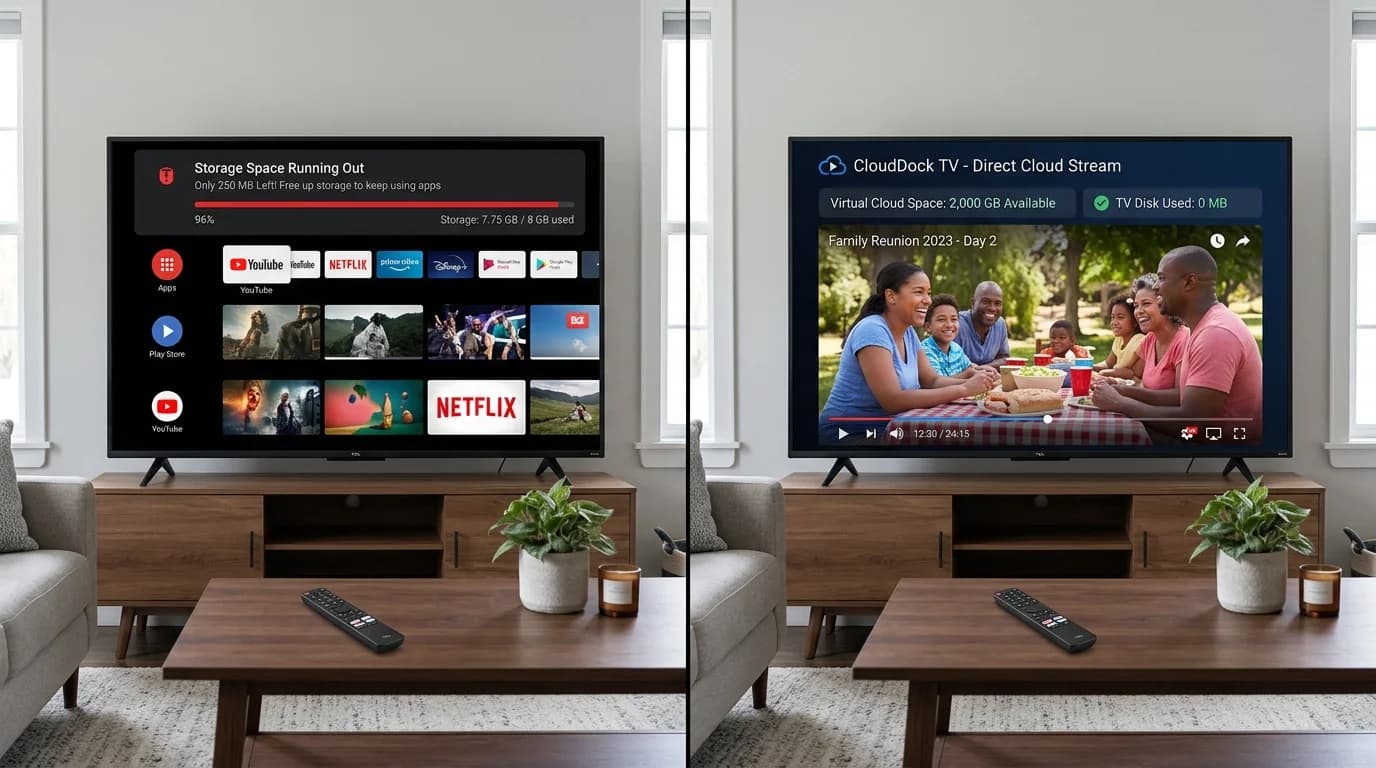
Android TV Storage Space Running Out? 6 Ways to Fix It (And Expand Without USB)
Constantly hit with the 'Storage Space Running Out' error on your Smart TV? Discover why 8GB budget TVs choke on storage and how to expand your TV storage to 2,000 GB wirelessly.
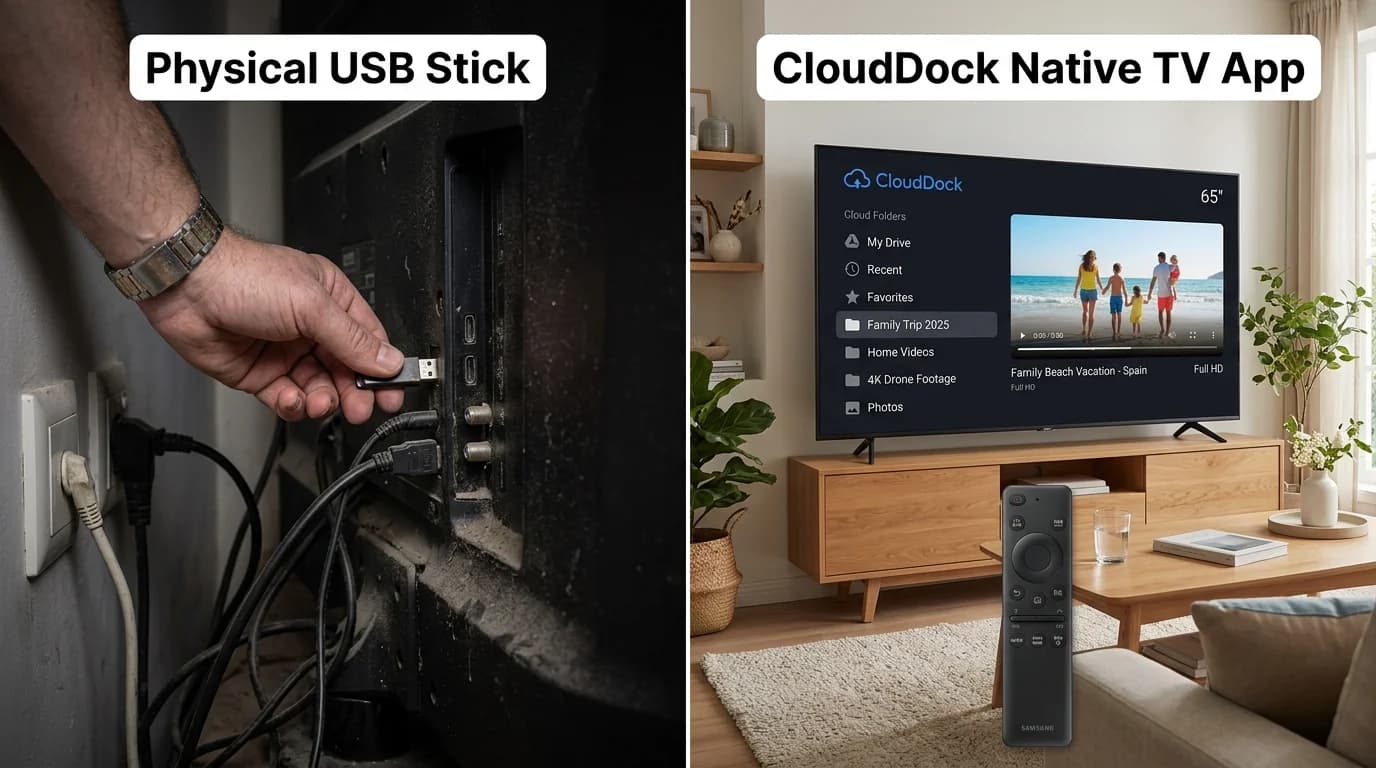
How to Play Videos on TV Without a Pendrive (The Wireless USB Guide)
Mounted your Smart TV tight against the wall? Tired of hunting for lost flash drives, FAT32 format errors, and file transfer delays? Here is how to use a 'Wireless Pendrive' for Smart TV in 2026.

How to Stream Google Drive Videos & Photos on Android TV (Zero Remote Typing)
Stop struggling with clunky TV file explorers and battery-draining screen mirroring. Here is the step-by-step guide to streaming your Google Drive library on Android TV in 1080p.
Upgrade Your Smart TV to Wireless Cloud Streaming
Retire your physical flash drive today. Connect Google Drive to your Android TV in 3 seconds with zero remote typing.