
Android TV Storage Space Running Out? 6 Ways to Fix It (And Expand Without USB)
Constantly hit with the 'Storage Space Running Out' error on your Smart TV? Discover why 8GB budget TVs choke on storage and how to expand your TV storage to 2,000 GB wirelessly.
1. The 8GB Storage Trap: Why Your TV is Constantly Full
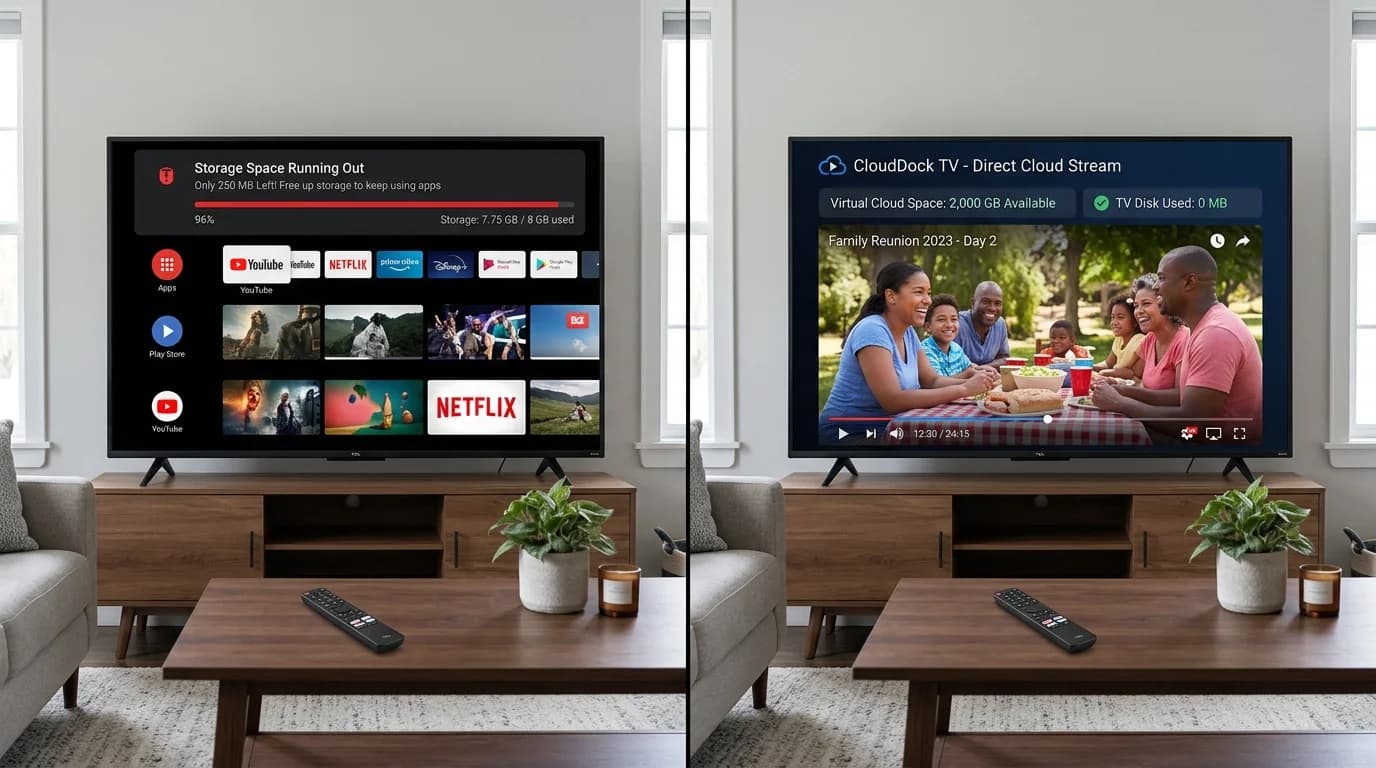
You purchase a gorgeous 4K Smart TV advertised with quad-core processors, Dolby Vision, and smart app features. But within three months, a persistent red banner appears across your home screen: 'Storage space running out. Some system functions may not work.'
Why does this happen? The overwhelming majority of budget and mid-range Android TVs (including popular models from Xiaomi Mi TV, TCL, Kodak, Thomson, and Blaupunkt) ship with only 8GB of total eMMC storage.
Here is the brutal breakdown of where that 8GB actually goes:
- Android TV Operating System: Consumes 4.2GB to 4.8GB of system partitions.
- Pre-installed Manufacturer Bloatware: Takes another 1.2GB to 1.5GB of non-removable space.
- Streaming App Caches (YouTube, Netflix, Prime Video): Rapidly accumulates 1.0GB to 1.5GB of thumbnail and video cache.
- Actual Usable Space for User Media & Apps: Typically under 800MB!
“When free storage drops below 400MB, Android TV cannot write background logs or download app updates. The launcher begins to stutter, remote commands lag by 5 seconds, and apps crash randomly.”
2. The 6 Practical Fixes to Free Up Space Right Now
Before investing in external hardware, follow these six maintenance steps to reclaim emergency storage on your TV:
- Fix 1: Clear App Cache for Heavy Streamers — Navigate to Settings > Apps > See all apps. Select YouTube, Netflix, Disney+, and Prime Video, and click 'Clear cache' on each. This can instantly recover 500MB to 1.5GB.
- Fix 2: Uninstall Unused Factory Demo Apps & Games — Delete games or streaming platforms you never watch.
- Fix 3: Clear Google Play Services & Play Store Data — Clear cache and data on Google Play Services to remove corrupt update downloads.
- Fix 4: Disable Automatic App Updates — Turn off auto-updates in Google Play Store settings so pending updates don't stealthily fill your drive.
- Fix 5: Remove Downloaded Backdrop Screensavers — High-resolution backdrop photos consume hundreds of megabytes of hidden storage.
- Fix 6: Use Cloud Media Streaming Instead of Local Files — Never download video files or APKs directly onto TV internal storage.
3. Why Plugging in a USB Drive Causes Glitches and Reboots
Most users attempt to solve the storage crisis by formatting a USB flash drive as 'Adoptable Device Storage' on Android TV.
Unfortunately, this often makes TV performance worse rather than better:
- Flash Drive Speed Mismatch: Budget flash drives have random write speeds under 10 MB/s. When the Android TV OS runs apps from a slow USB drive, the entire interface freezes and stutters.
- Sudden Unmounts & Boot Loops: Overheating USB ports cause the TV to lose connection to the drive. When the TV cannot locate core app files, it reboots in an endless loop.
- Port Locking: Once formatted as adoptable storage, the USB drive is encrypted to that single TV and cannot be read by any computer.
4. The Zero-Hardware Solution: Virtual Cloud Storage Extender
The modern solution is to treat your Smart TV as a pure display canvas and decouple media storage entirely.
Instead of storing heavy video files, recordings, and family photo collections on the TV's tiny 8GB internal drive, store them in Google Drive. With Cloud Dock TV, your television connects directly to Google Drive via high-speed cloud streaming.
Your TV gains access to 15GB, 100GB, or 2,000GB of high-definition video archives while using zero megabytes of internal TV flash storage.
“Cloud Dock streams media into a tiny 24MB transient RAM buffer and releases memory immediately. It never writes video files to TV storage.”
5. Physical USB Storage Extension vs. Cloud Storage Vault
How physical USB drive storage expansion compares to Cloud Dock's virtual cloud extender:
Adoptable USB Storage
Slows down TV launcher; overheating flash drives cause random TV crashes and boot loops.
Cloud Dock Virtual Extender
Zero TV slowdown; video decodes directly in native hardware; zero hardware strain.
Maximum Storage Limit
Limited to 32GB or 64GB flash drive size; requires buying new drives.
Up to 2,000GB+ Cloud Capacity
Scales with your Google Drive / Google One storage tier effortlessly.
Setup Complexity
Requires formatting drive, migrating app data, and risking TV bricking.
3-Second Setup
Zero formatting; simply scan a QR code with your smartphone and stream immediately.
6. How to Stream 2,000 GB of Media on an 8GB TV
Follow these simple steps to expand your Android TV media capacity to 2,000 GB in 3 minutes:
- Step 1: Install Cloud Dock from the Google Play Store on your Android TV or Google TV.
- Step 2: Open the app to view your 6-digit handshake code.
- Step 3: Scan the QR code with your phone and sign into Google Drive with 1 tap.
- Step 4: Stream your 4K video files, family recordings, and photo albums without using a single byte of TV flash storage!
7. Frequently Asked Questions
Common questions about fixing Android TV storage bottlenecks:
Frequently Asked Questions
Related Articles & Technical Guides
Deep dives into Android TV media streaming pipelines, storage extenders, and living room memory management.
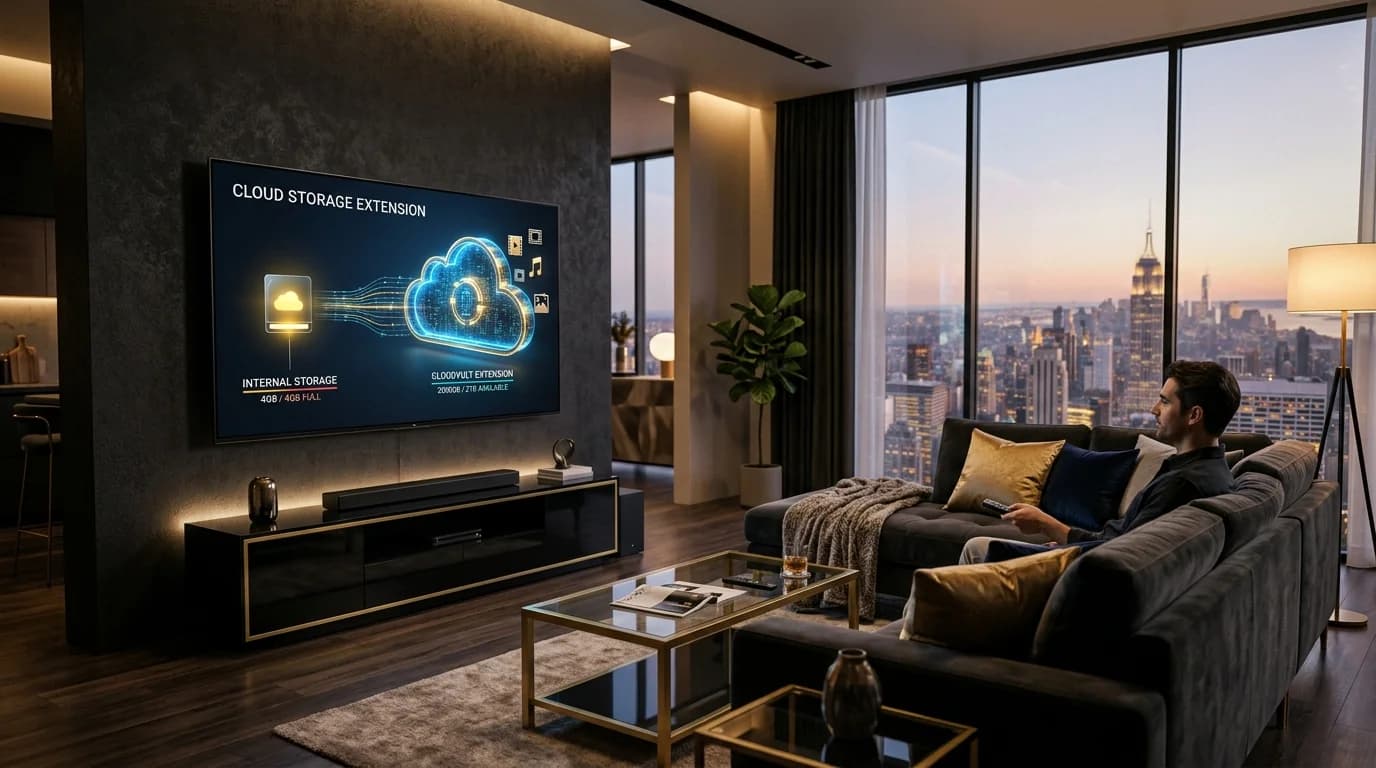
How to Expand Android TV Storage Without a USB Drive (The Cloud Extender Guide)
Struggling with the 'Storage Space Running Out' alert on your Smart TV? Learn why budget Android TVs choke on storage and how to turn your Google Drive into a 2,000 GB wireless media vault.
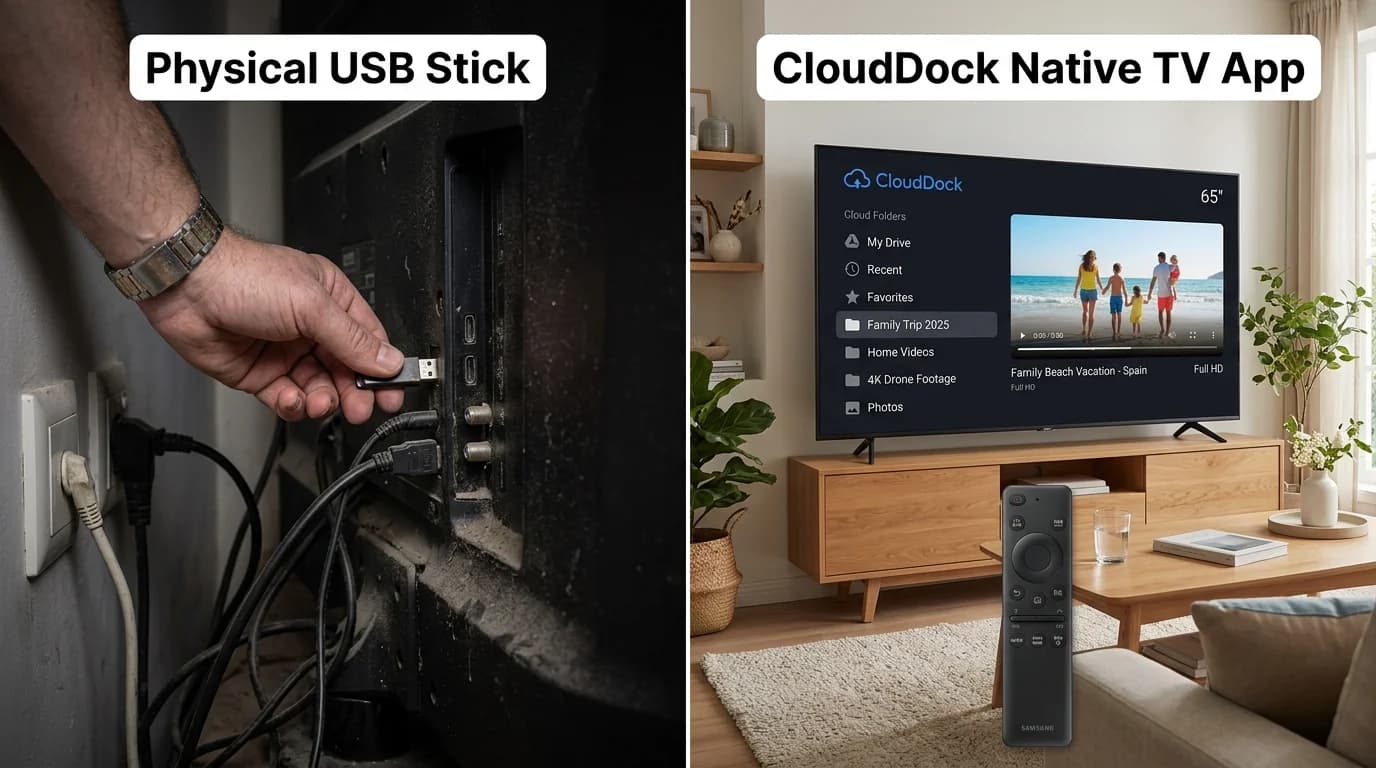
How to Play Videos on TV Without a Pendrive (The Wireless USB Guide)
Mounted your Smart TV tight against the wall? Tired of hunting for lost flash drives, FAT32 format errors, and file transfer delays? Here is how to use a 'Wireless Pendrive' for Smart TV in 2026.
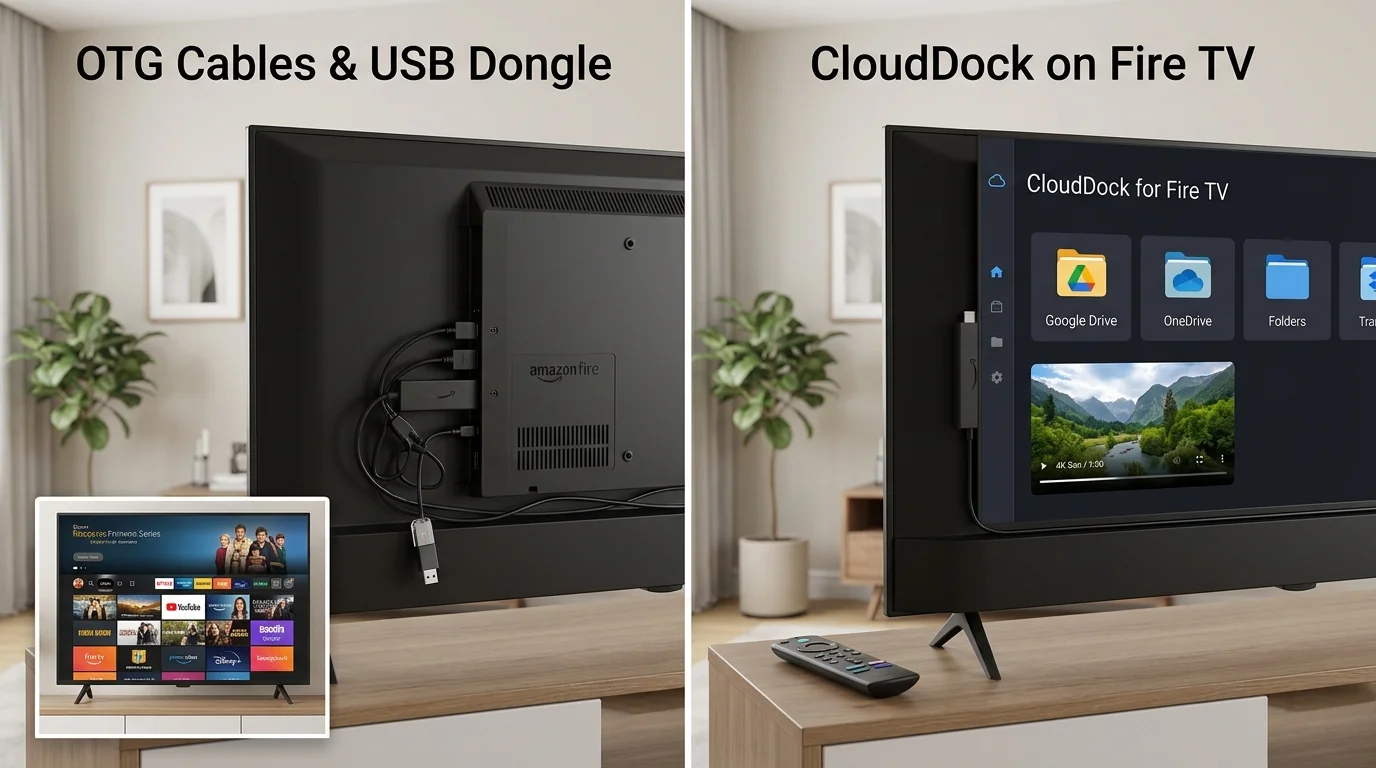
Firestick Storage Extender Guide: How to Expand Fire TV Storage Without USB
Seeing the 'Critically Low Storage' warning on your Fire TV Stick? Avoid messy OTG splitters and failing flash drives with this zero-hardware cloud streaming guide.
Upgrade Your Smart TV to Wireless Cloud Streaming
Retire your physical flash drive today. Connect Google Drive to your Android TV in 3 seconds with zero remote typing.