
How to Stream Google Drive Videos & Photos on Android TV (Zero Remote Typing)
Stop struggling with clunky TV file explorers and battery-draining screen mirroring. Here is the step-by-step guide to streaming your Google Drive library on Android TV in 1080p.
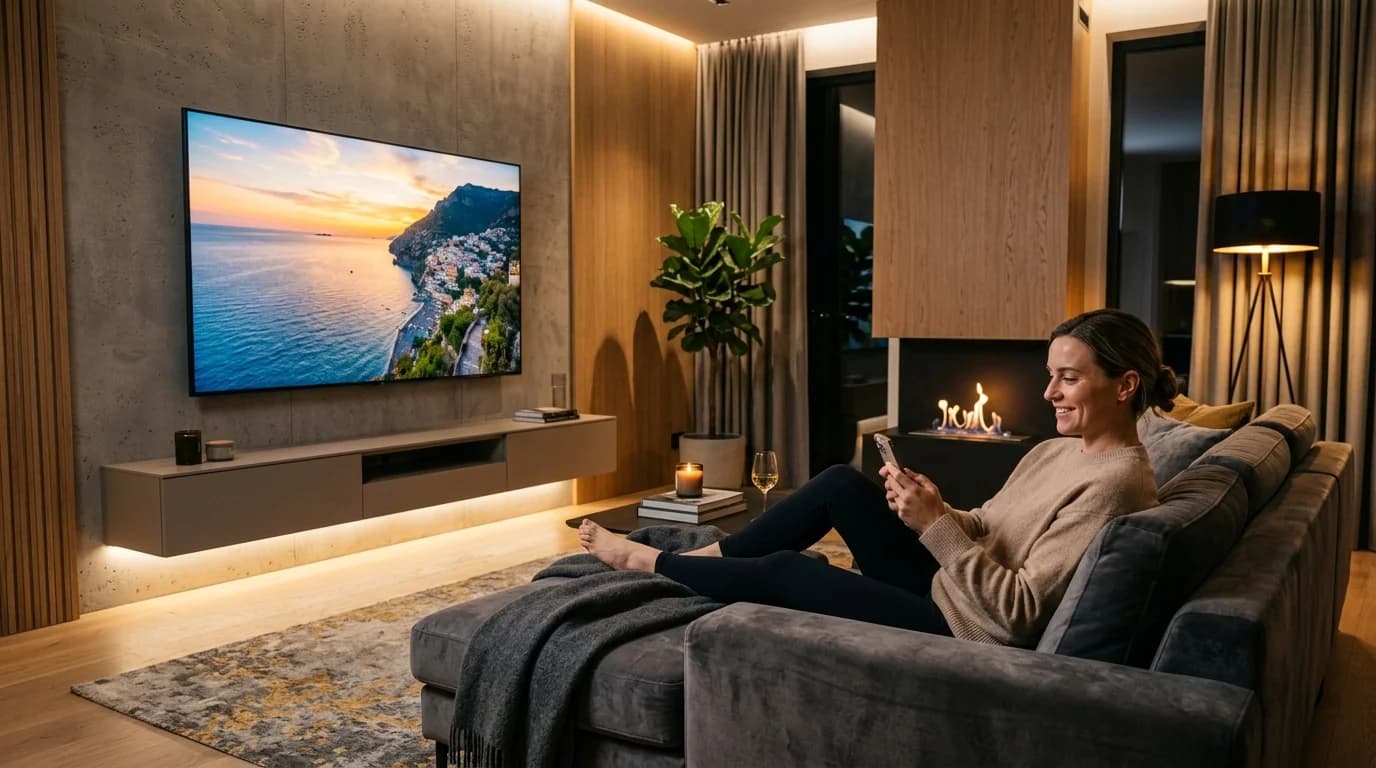
1. Why Isn't There an Official Google Drive TV App?
Virtually every smartphone user backs up irreplaceable memories to Google Drive—vacations, weddings, family gatherings, and milestone videos. Tens of millions of terabytes of personal media sit in the cloud.
Yet when searching the Google Play Store on Android TV or Google TV, there is no official Google Drive app. Why has Google refused to build one for the living room?
The reality is input mismatch: TV remotes are terrible input devices for typing 25-character Google passwords, two-factor authentication (2FA) prompts, and security captchas. Furthermore, Google Drive's desktop interface—with nested folders, spreadsheets, and PDF documents—makes for an awful leanback 10-foot television experience.
“You have terabytes of beautiful memories in Google Drive, and a 55-inch 4K screen in your living room, but no seamless way to connect the two without friction.”
2. The 3 Broken Workarounds Everyone Tries (And Why They Fail)
Frustrated users typically resort to three painful workarounds, all of which introduce severe compromises:
- ❌ Workaround 1: Screen Mirroring / Chromecast — Mirrors your phone screen to the TV over Wi-Fi. It drains your smartphone battery within an hour and causes severe stutter. Worse, every private WhatsApp message, incoming call, or banking alert pops up publicly on the 55-inch family screen.
- ❌ Workaround 2: Sideloading the Mobile Google Drive APK — Installing an extracted mobile APK on Android TV results in an unscaled touch UI that cannot be navigated with a standard D-pad remote. You need a Bluetooth mouse just to click a folder.
- ❌ Workaround 3: Clunky Desktop File Explorers (e.g. AnExplorer, X-plore) — Forces you to laboriously type your Google account email and password using on-screen remote arrow keys. Video playback is often unaccelerated, resulting in dropped frames on budget TV chipsets.
“Never mirror personal phone screens during family gatherings. Incoming private chats, work notifications, and personal photos will inadvertently broadcast to everyone in the room.”
3. How Cloud Dock TV Solves Google Drive on TV
Cloud Dock TV eliminates this friction by introducing a Decoupled Cloud Architecture: separating authentication and control from television hardware playback.
Instead of forcing the TV to be a clumsy computer, Cloud Dock assigns each device the job it does best:
- 1. Controller (Your Smartphone): Authenticate with official Google OAuth on mobile in 1 tap using Face ID or fingerprint. Your smartphone becomes a responsive touch scrubber to change albums and scrub video timelines.
- 2. Presentation Engine (Your Smart TV): A dedicated hardware-accelerated 1080p H.264/AAC media player tuned specifically for budget Android TV processors (Mi TV, TCL, Kodak, Thomson, Sony).
- 3. 3-Second Encrypted Bridge: A temporary 6-digit handshake binds your phone controller to the TV screen over encrypted WebSockets. Media streams directly from Google Drive's CDN to the TV's native decoder.
4. Screen Mirroring vs. Cloud Dock TV Direct Stream
Here is how Cloud Dock TV's direct cloud stream compares to traditional phone screen mirroring:
Screen Mirroring / Miracast
Compressed Wi-Fi video stream, heavy 40%/hr phone battery drain.
Cloud Dock TV Direct Stream
Native 1080p H.264 hardware decoding, 0% phone battery drain (phone can be locked).
Notification Mirroring
Leaks private WhatsApp chats, SMS alerts, and phone calls on the big screen.
100% Notification Privacy
Zero phone notifications mirrored. Only authorized media plays on TV.
Password Setup
Requires manual screen share permission every single session.
3-Second Handshake
Zero typing on TV remote. Scan QR code or enter 6-digit code on mobile.
5. Step-by-Step Setup Guide (3 Minutes, Zero Typing)
Getting your Google Drive media onto your television takes less than 3 minutes with zero cables:
- Step 1: Install Cloud Dock on your Android TV or Google TV directly from the Google Play Store.
- Step 2: Launch the TV app. A clean Obsidian Dark display will present a prominent 6-digit code (e.g. 842-195) and QR code.
- Step 3: Open your phone camera and scan the QR code, or visit clouddock.app on your mobile browser.
- Step 4: Sign in with Google with 1 tap. Cloud Dock uses official Google OAuth with read-only media scope.
- Step 5: Select any folder, vacation video, or wedding photo album. It mounts instantly on your 55-inch screen with buttery-smooth playback.
“Leave Cloud Dock open on a photo album to transform your television into a 4K living room digital photo frame with slow, cinematic panning transitions.”
6. Frequently Asked Questions
Common questions about streaming personal Google Drive media to Android TV:
Frequently Asked Questions
Related Articles & Technical Guides
Deep dives into Android TV media streaming pipelines, storage extenders, and living room memory management.
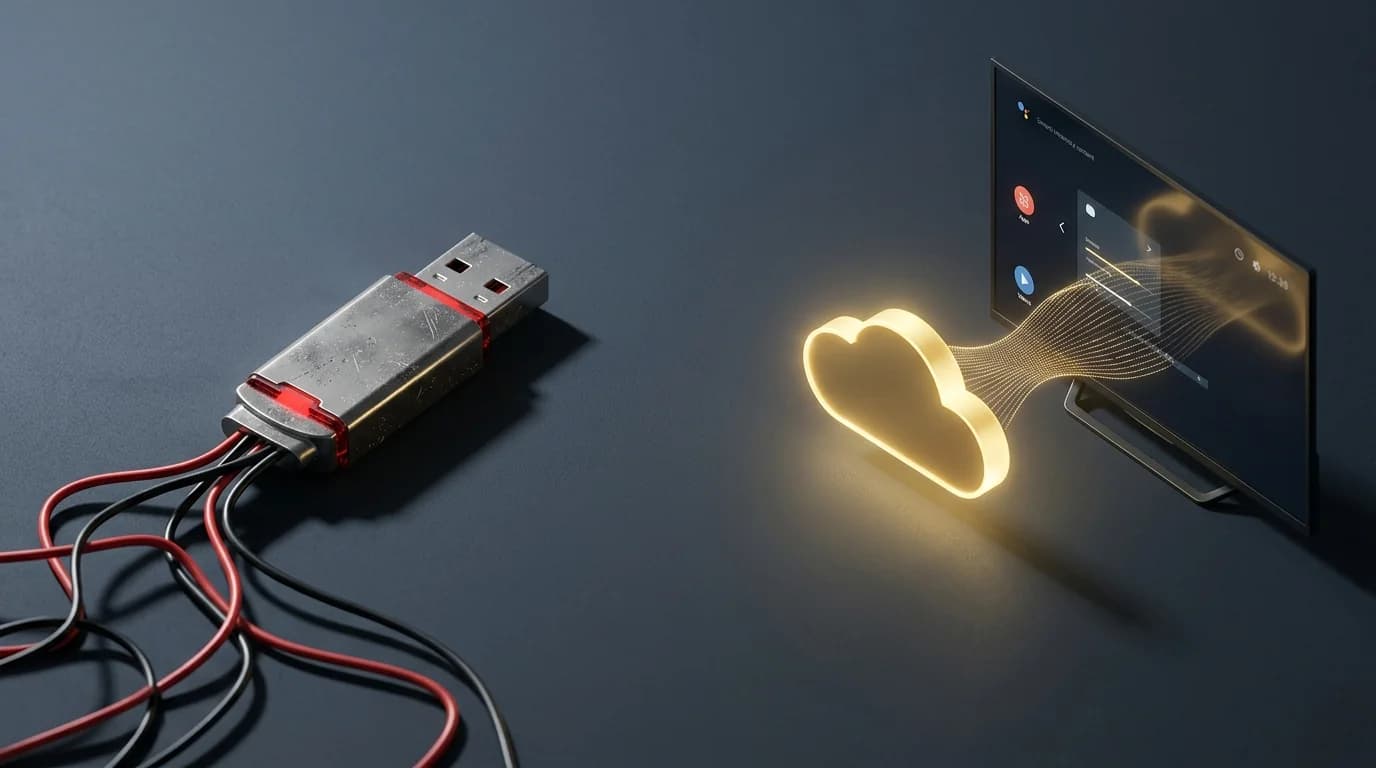
Why Cloud Dock TV Is the Ultimate Pen Drive Alternative for Smart TV Owners
For over 15 years, our reflex for playing personal photos and videos on TV was grabbing a USB stick. Here is why the physical pen drive is officially obsolete in the modern living room.
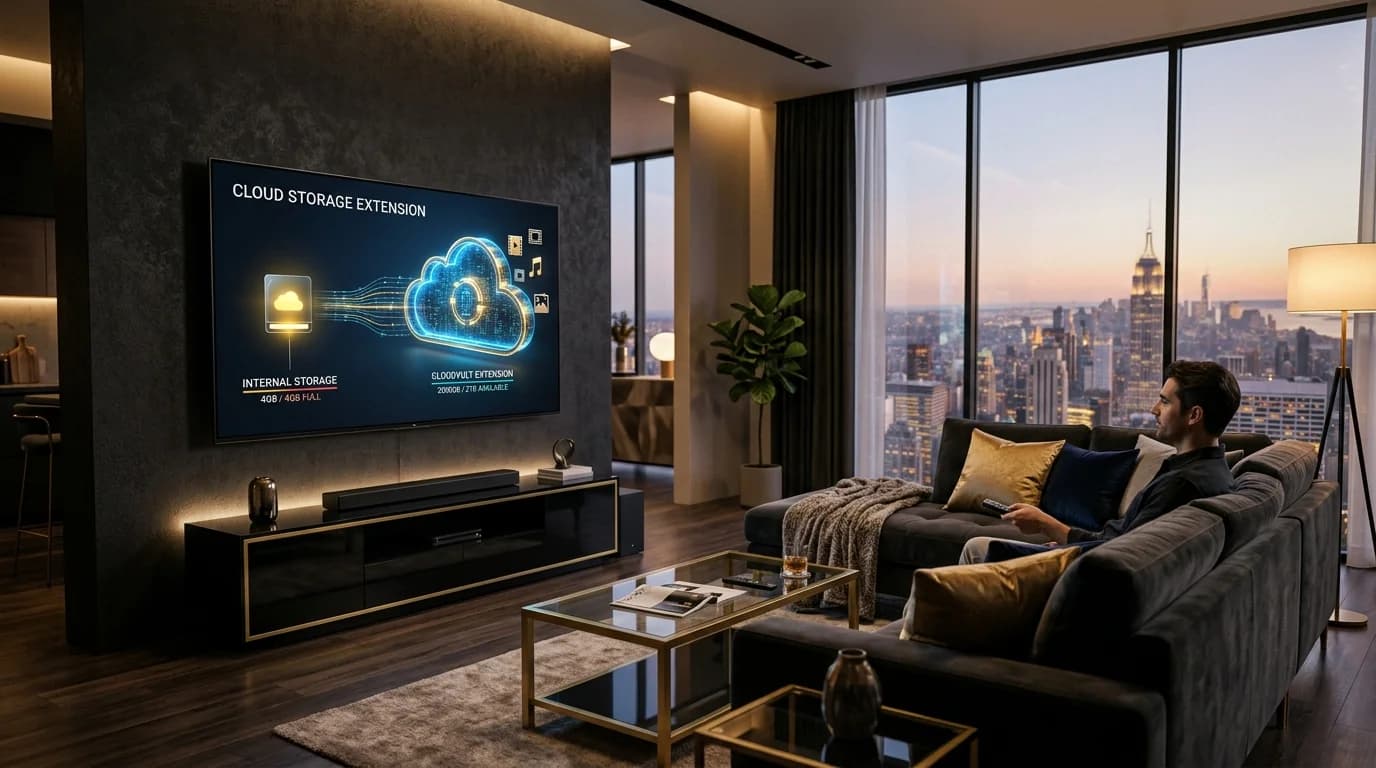
How to Expand Android TV Storage Without a USB Drive (The Cloud Extender Guide)
Struggling with the 'Storage Space Running Out' alert on your Smart TV? Learn why budget Android TVs choke on storage and how to turn your Google Drive into a 2,000 GB wireless media vault.
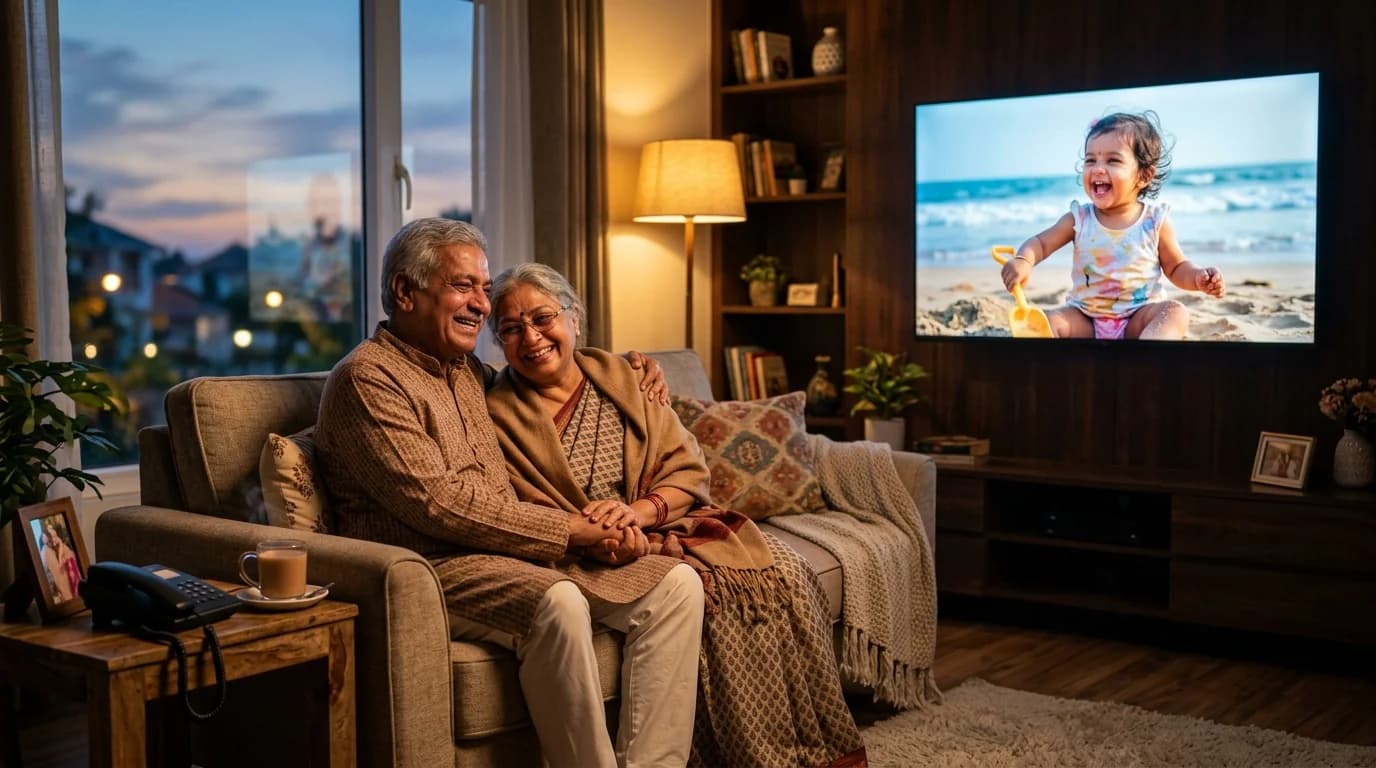
How to Send Photos to Your Parents' Smart TV From Anywhere in the World
Living 1,000 miles away from your parents or grandparents? Here is how to light up their living room with baby photos and family memories using the 3-second Cloud Dock TV bridge.
Upgrade Your Smart TV to Wireless Cloud Streaming
Retire your physical flash drive today. Connect Google Drive to your Android TV in 3 seconds with zero remote typing.